
Onboarding Lifecycle
The onboarding steps and the Customer's status at each one.
A Customer must be verified before making transfers. The Customer's status shows the current step. With the API, the onboarding also has its own status.
Status Flow
How the Customer's status changes during onboarding.
%%{init: {"flowchart": {"curve": "monotoneY"}, "state": {"curve": "monotoneY", "useMaxWidth": false}}}%%
stateDiagram-v2
    state "Agreement accepted" as agreement
    state "Info submitted (hosted form)" as form
    state "Info submitted (API)" as api
    state "Harbor review" as review
    [*] --> unfinished: Customer created
    unfinished --> agreement
    agreement --> form
    agreement --> api
    form --> finished
    api --> verifying
    finished --> verifying
    verifying --> review
    review --> verified: Approved
    review --> rejected: Needs correction
    review --> declined: Declined
    rejected --> verifying: Resubmitted
    rejected --> declined: Final rejection
    verified --> deactivated: Suspended
    deactivated --> verified: Reinstated

    classDef success fill:#d1fae5,stroke:#059669,color:#065f46
    class verified success
    classDef failure fill:#fee2e2,stroke:#dc2626,color:#991b1b
    class declined failure
    classDef warning fill:#fef3c7,stroke:#d97706,color:#92400e
    class rejected warning
    classDef step fill:#f3f4f6,stroke:#9ca3af,stroke-dasharray:4 4,color:#4b5563
    class agreement, form, api, review step
Create the Customer
Create the Customer with their basic details, such as name and email. For the request, see Customers.
POST /api/v1/customers
The response has what you need for the next steps:
uuid: the Customer's ID. You use it in every onboarding request.status:unfinished, until their information is submitted.agreement_link: the link the Customer opens to accept the agreement.
Accept the Agreement
The Customer opens agreement_link in a browser and accepts Harbor's service agreement. There's no API endpoint for it.
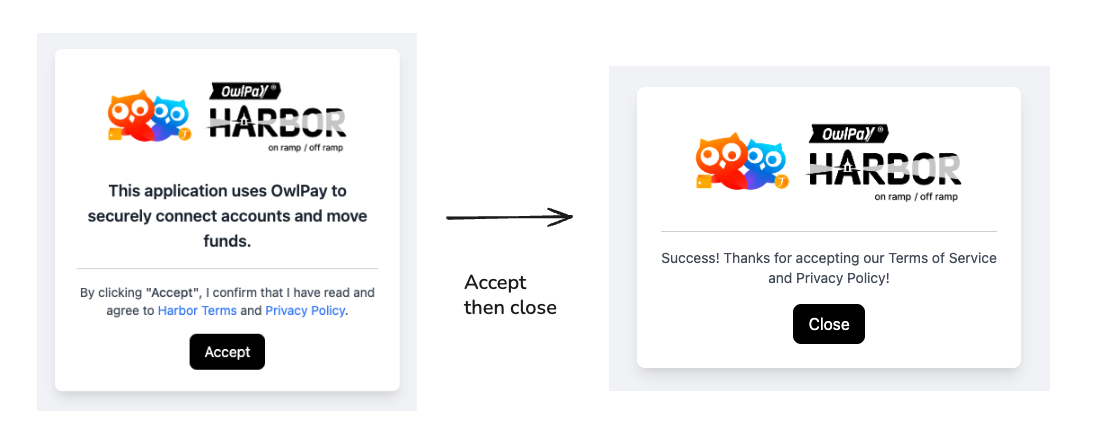
Agreement Page
has_signed_agreementchanges totrue.- The
statusstaysunfinished. - Before the agreement is accepted, the onboarding API returns
403with error code2103.
Submit the Information
Send the Customer's information to Harbor in one of two ways: you send it through the API, or the Customer fills in a hosted form.
Choose the onboarding type:
- Standard Onboarding (V1) or Graded Onboarding (V2).
- The Customer stays on this type. It can't be switched later.
- API: collect the Customer's personal details, address and identity document in your own app, then send them to Harbor. See Onboard an Individual (V1).
- Hosted form: send the Customer their
verification_link. They open it, fill in their personal details and upload their documents on Harbor's form. See Onboard via Hosted Form.
- API: collect the company's details, its representatives and its company documents in your own app, then send them to Harbor. See Onboard a Business (V1).
- Hosted form: send the business its
verification_link. A representative opens it, fills in the company details and uploads the company documents on Harbor's form. See Onboard via Hosted Form.
- API: collect the information for the level you want, Level 1 or Level 2, in your own app, then send it to Harbor. See Onboard an Individual (V2).
Harbor Review
During the review, the Customer's status is verifying, and the onboarding status is submitted. To check the onboarding:
GET /api/v1/customers/{customer_uuid}/onboarding{
"data": {
"id": "onb_FFFBubk55R1Myruer83Mah0i8yTBLft6tyP0u1WT",
"customer_id": "cus_5N12uO7wjwKewJB82WBNPKs3ZaWxqQFn1jnOSVqm",
"applicant": "individual",
"status": "submitted",
"submitted_at": "2026-10-12T05:51:28.000000Z",
"created_at": "2026-10-12T05:47:11.000000Z",
"updated_at": "2026-10-12T05:51:28.000000Z"
}
}GET /api/v1/customers/{customer_uuid}/onboarding{
"data": {
"id": "onb_1FiP9xeK4tZbHAlu4r5kZeZolMgBpKBZ1Qgt8t6r",
"customer_id": "cus_Xhxz2faYDQnFxqPmJ4H0m54RdmPTx8DphhYPbZnX",
"applicant": "company",
"status": "submitted",
"submitted_at": "2026-10-12T08:32:44.000000Z",
"created_at": "2026-10-12T08:29:03.000000Z",
"updated_at": "2026-10-12T08:32:44.000000Z"
}
}GET /api/v2/customers/{customer_uuid}/individual/onboarding{
"data": {
"status": "submitted",
"kyc_level": null,
"next_level": null,
"transfers_blocked": true,
"rfi_link": null,
"pending_requirements": []
}
}Harbor also sends a webhook event each time the status changes. For the list, see Customer Events and Onboarding Events.
Review times:
Usually 1 business day. A manual check can take a few more days.
Usually 5 business days. Companies with complex ownership can take longer.
- Level 1: a few minutes.
- Level 2: from a few minutes to about a day.
- Level 3: 1 to 3 business days. Level 3 is always reviewed manually.
Get the Result
After the review, the Customer's status changes to one of these:
status | Meaning | What to do |
|---|---|---|
verified | The Customer is approved. | Nothing. The Customer can make transfers. |
rejected | Something in the information needs fixing. | Correct it and send it again. See Fix Onboarding Errors. |
declined | The Customer can't be onboarded. | Nothing. This is final. |
For example, the Customer in each case:
{
    "data": {
        "uuid": "cus_ZDLfhkqKDNZ9jHDJGkssum5GnS59nxFjx0DHTs5z",
        "object": "customer",
        "status": "verified",
        "state": "verified",
        "type": "individual",
        ...
    }
}{
"data": {
"uuid": "cus_ZDLfhkqKDNZ9jHDJGkssum5GnS59nxFjx0DHTs5z",
"object": "customer",
"status": "rejected",
"state": "update_required",
"type": "individual",
...
}
}{
"data": {
"uuid": "cus_ZDLfhkqKDNZ9jHDJGkssum5GnS59nxFjx0DHTs5z",
"object": "customer",
"status": "declined",
"state": "declined",
"type": "individual",
...
}
}Harbor may also ask for more information. In that case, the status stays the same, and the state changes to update_required. See Onboarding RFI.
Check the Onboarding Type
To check an individual's onboarding type:
GET /api/v2/customers/{customer_uuid}/individual/onboarding
200: Graded Onboarding. The response has the Customer's level.422with error code2309: Standard Onboarding.404with error code2001: not onboarded yet.
For example:
{
    "data": {
        "status": "verified",
        "kyc_level": 2,
        "next_level": 3,
        "transfers_blocked": false,
        "rfi_link": null,
        "pending_requirements": []
    }
}{
"message": "This customer has V1 KYC history; graded (V2) onboarding is not available. Continue on the V1 endpoints.",
"code": 2309,
"error_type": "onboarding.v1_customer_use_v1"
}{
"message": "No onboarding found for this customer.",
"code": 2001,
"error_type": "general.resource_not_found"
}Test in Sandbox
In Sandbox, Customers are verified automatically, without a review. Because of this, the hosted form shows the Customer as already verified. Customers verified this way don't get a level, so they can't test level limits.
To test Graded Onboarding (V2) level by level, create a Customer, accept the agreement, then start at Level 1 and upgrade.
Level 1
Submit a US residence with a two-letter state code. The Customer reaches Level 1 within a few seconds.
POST /api/v2/customers/{customer_uuid}/individual/onboarding
{
    "kyc_level": 1,
    "nationality": "US",
    "residence": { "country": "US", "state": "WA" }
}
Level 2
Upgrade with the Level 2 information. Any JPG or PNG identity image between 100 KB and 8 MB works. The Customer reaches Level 2 within about a minute.
POST /api/v2/customers/{customer_uuid}/individual/onboarding/upgrade
{
    "residence": { "street": "200 Pine St", "sub_street": "Apt 5", "city": "Seattle", "postal_code": "98101" },
    "occupation": "legislators_and_senior_officials",
    "purpose_of_use": ["payments"],
    "ssn": "123456789",
    "identity_document": { "type": "PASSPORT", "country": "US", "front": "{{BASE64_IMAGE}}" }
}
Notes
customer.kyc.verifiedis sent before the level is set, so itskyc_levelcan still benull. The level comes incustomer.kyc_level.changed.- In Sandbox, any identity image over 100 KB is accepted for the Level 2 upgrade. In Production, documents are checked, and an invalid image is rejected.
Updated 43 minutes ago