
Link a Debit Card
This document describes how to integrate the Debit Card On-Ramp feature via the OwlPay Harbor API, allowing your end users to purchase cryptocurrency directly using a linked debit card.
The Debit Card feature is currently available only for Individual customers. Business customers are not yet supported.
Before executing an Debit Card Pull transaction, OwlPay will send an authorization email to the Customer requesting their approval. The email will clearly identify which Application is initiating the pull request.
Complete Flow Diagram
sequenceDiagram
    autonumber
    participant PSP as Your Application
    participant Harbor as Harbor API
    participant User as End User

    Note over PSP, User: Phase 1: Bind Card
    PSP->>Harbor: POST /customers/{uuid}/cards
    Harbor-->>PSP: {uuid: "card_...", url: "https://...", status: "pending"}
    PSP->>User: Redirect to card binding page
    User->>Harbor: Complete card binding
    Harbor->>Harbor: Sync card info

    Note over PSP, User: Phase 2: List Cards
    PSP->>Harbor: GET /customers/{uuid}/cards
    Harbor-->>PSP: [{uuid: "card_...", status: "active", last4_digits, ...}]

    Note over PSP, User: Phase 3: Get Quote
    PSP->>Harbor: POST /v2/transfers/quotes
    Harbor-->>PSP: [{payment_method: "DEBIT_CARD", quote_id, ...}]

    Note over PSP, User: Phase 4: Create Transfer
    PSP->>Harbor: POST /v2/transfers (with card_ ID + quote_id)
    Harbor->>Harbor: Validate card & limits

    alt Validation failed
        Harbor-->>PSP: 422 Error (card invalid / limit exceeded)
    else Validation OK
        Harbor-->>PSP: 201 Created (Transfer object)
        Harbor->>User: Send email notification to cardholder
    end
Prerequisites
- Your Application has the
DEBIT_CARDpayment method enabled - The Customer has completed KYC verification (status:
VERIFIED) - The Customer has completed bank compliance onboarding (CRB Bank Onboarding status:
ONBOARDED)
Support Coverage Notice: Before integrating, please review the eligible card types, network brands, and countries in the Debit Card Support Coverage guide. Note that credit cards are not supported.
Flow Overview
1. Bind Card       → User completes card binding via the binding page
2. List Cards      → Retrieve the list of linked cards
3. Get Quote       → Get a DEBIT_CARD quote
4. Create Transfer → Submit a transfer with the card ID
5. Email Notification → OwlPay sends a notification email to the cardholder
Important: When a Debit Card transfer is created, OwlPay will send a notification email to the cardholder informing them of the upcoming charge. Please ensure the user is aware of this process.
Step 1: Bind Card
Generate a card binding URL for the customer and redirect them to complete card authorization and binding.
Request
curl --location --request POST 'https://harbor-sandbox.owlpay.com/api/v1/customers/{{CUSTOMER_UUID}}/cards' \
--header 'Content-Type: application/json' \
--header 'Accept: application/json' \
--header 'X-API-KEY: {{API_KEY}}' \
--data-raw '{
    "redirect_url": {
        "success": "https://yourapp.com/card/success",
        "failed": "https://yourapp.com/card/failed"
    }
}'| Parameter | Type | Required | Description |
|---|---|---|---|
redirect_url.success | string | No | Redirect URL after successful binding. Supports web links or app deep links |
redirect_url.failed | string | No | Redirect URL on binding failure. Supports web links or app deep links |
Response (201)
{
    "data": {
        "uuid": "card_abc123",
        "object": "customer_card",
        "customer_uuid": "cus_1234567890",
        "status": "pending",
        "last4_digits": null,
        "card_company": null,
        "pull_enabled": false,
        "push_enabled": false,
        "first_name": null,
        "last_name": null,
        "country_code": null,
        "issuer_country_code": null,
        "enabled": false,
        "restricted": false,
        "url": "https://card-binding.example.com/bind/card_abc123",
        "created_at": "2026-03-21T10:00:00+00:00",
        "updated_at": "2026-03-21T10:00:00+00:00"
    }
}Card Information for Testing
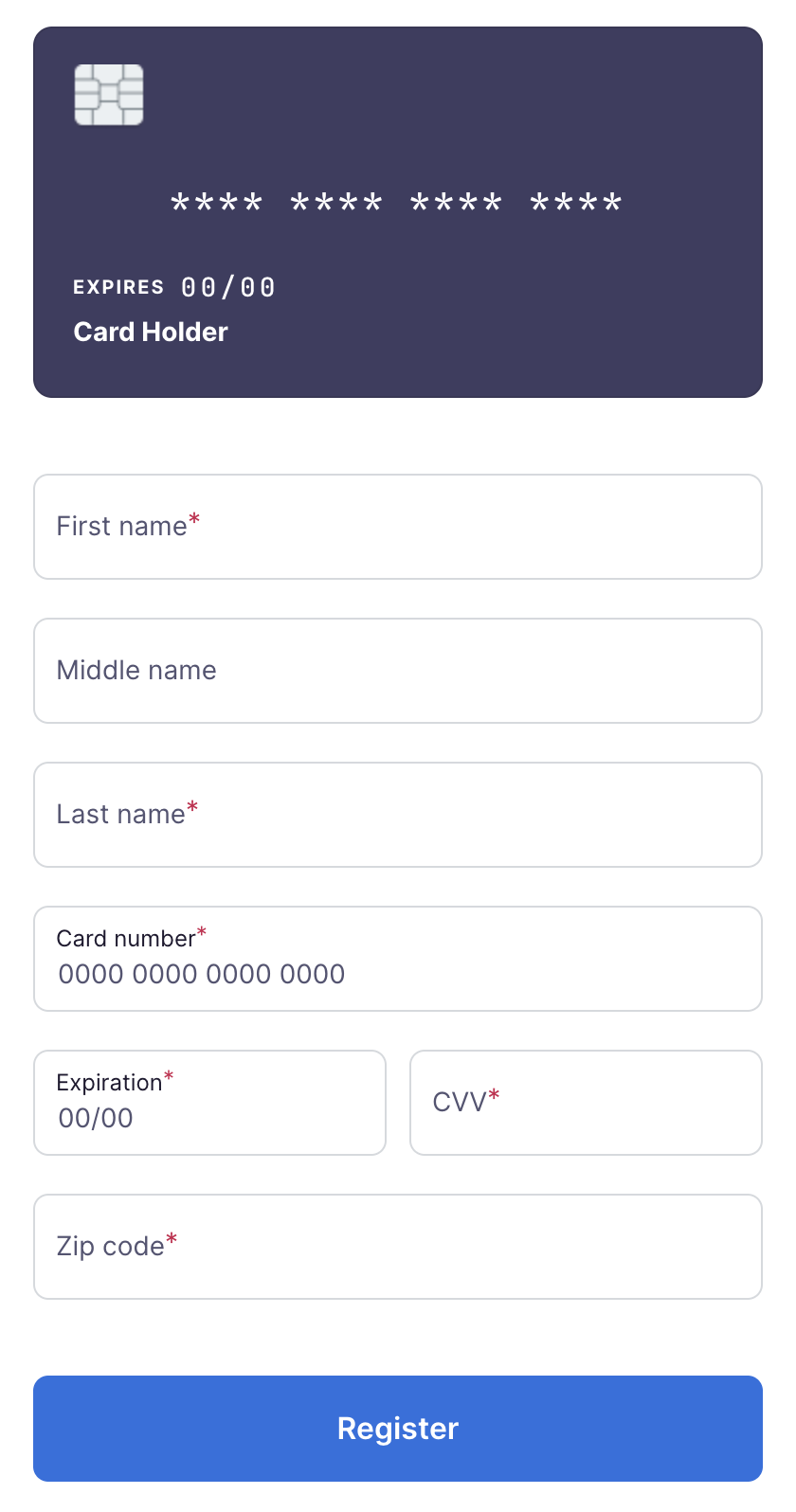
For testing purposes, you may use the card number 4242424242424242. Ensure the expiration date is set to 12/31, the CVV to 123, and use 12345 as the postal/zip code to bypass validation during the integration process.
More Cards for Testing:
| Mastercard (Debit) | VISA OCT (Prepaid) | VISA OCT (Debit) |
|---|---|---|
| 5102589999999905 | 4000289999999908 | 4007589999999904 |
| 5102589999999913 | 4000289999999916 | 4007589999999912 |
| 5102589999999921 | 4000289999999924 | 4007589999999920 |
| 5102589999999939 | 4000289999999932 | 4007589999999938 |
| 5102589999999947 | 4000289999999940 | 4007589999999946 |
| 5102589999999954 | 4000289999999957 | 4007589999999953 |
| 5102589999999962 | 4000289999999965 | 4007589999999961 |
| 5102589999999970 | 4000289999999973 | 4007589999999979 |
| 5102589999999988 | 4000289999999981 | 4007589999999987 |
| 5102589999999996 | 4000289999999999 | 4007589999999995 |
Integration
Present the returned url to the user via redirect or iframe. After the user completes card information entry on the binding page, the card status will change from pending to active, with enabled set to true, making it ready for transactions.
Note: When
statusispending, the returnedurlis the card binding page link. Once the card is activated,urlbecomesnull.
Step 2: List Cards
After the user completes card binding, call this API to retrieve the list of linked cards. The system automatically syncs the latest card status from upstream.
Request
curl --location --request GET 'https://harbor-sandbox.owlpay.com/api/v1/customers/{{CUSTOMER_UUID}}/cards' \
--header 'Accept: application/json' \
--header 'X-API-KEY: {{API_KEY}}'
Response (200)
{
    "data": [
        {
            "uuid": "card_abc123",
            "object": "customer_card",
            "customer_uuid": "cus_1234567890",
            "status": "active",
            "last4_digits": "4242",
            "card_company": "Visa",
            "pull_enabled": true,
            "push_enabled": false,
            "first_name": "JOHN",
            "last_name": "DOE",
            "country_code": "US",
            "issuer_country_code": "US",
            "enabled": true,
            "restricted": false,
            "url": null,
            "created_at": "2026-03-21T10:00:00+00:00",
            "updated_at": "2026-03-21T10:05:00+00:00"
        }
    ]
}| Field | Description |
|---|---|
uuid | Unique card identifier, prefixed with card_. This ID is required in Step 4 when creating a transfer |
status | Card status: pending, active, expired, disabled, restricted |
last4_digits | Last 4 digits of the card number |
card_company | Card network (e.g., Visa, Mastercard) |
pull_enabled | Whether the card supports pull (debit) transactions |
enabled | Whether the card is enabled for transactions. Only cards with true can be used |
restricted | Whether the card is restricted. If true, the card cannot be used |
Only cards with
status: active,enabled: true, andrestricted: falsecan be used to initiate transactions.
Step 3: Get Debit Card Quote
Before initiating a transfer, get a quote to confirm the exchange rate, fees, and settlement amount.
Request
curl --location --request POST 'https://harbor-sandbox.owlpay.com/api/v2/transfers/quotes' \
--header 'Content-Type: application/json' \
--header 'Accept: application/json' \
--header 'X-API-KEY: {{API_KEY}}' \
--data-raw '{
    "on_behalf_of": "{{CUSTOMER_UUID}}",
    "source": {
        "amount": "100.00",
        "asset": "USD",
        "type": "individual",
        "country": "US"
    },
    "destination": {
        "asset": "USDC",
        "type": "individual",
        "chain": "stellar"
    }
}'
Response (200)
The response includes quotes for multiple payment methods. Select the item where payment_method is DEBIT_CARD.
[
    {
        "id": "quote_f03AirZ3ZY...KBtFQfZtPDYv",
        "payment_method": "DEBIT_CARD",
        "source_amount": "100.00",
        "source_currency": "USD",
        "destination_amount": "99.50",
        "destination_currency": "USDC",
        "fee": "0.50",
        "quote_expire_date": "2026-03-21T09:30:00Z",
        "customer_limits": {
            "per_transaction_limit": "500.00",
            "daily_limit": "5000.00",
            "weekly_limit": "20000.00",
            "monthly_limit": "100000.00",
            "daily_spent": "0.00",
            "daily_remaining": "5000.00",
            "weekly_spent": "0.00",
            "weekly_remaining": "20000.00",
            "monthly_spent": "0.00",
            "monthly_remaining": "100000.00",
            "current_remaining": "500.00"
        }
    }
]
Save the
id(i.e.,quote_id) from theDEBIT_CARDquote — it is required in the next step to create the transfer. Whenon_behalf_ofis provided, the response includescustomer_limitswhich can be used to display the user's transaction limits on the frontend.
Step 4: Create Debit Card Transfer
Use the card_ ID from Step 2 and the quote_id from Step 3 to create the transfer.
Settlement Time Notice: Debit Card transfers typically settle in T+1 business days. For more details on fund availability and payment locks, see Settlement and Payment Lock Time.
Request
curl --location --request POST 'https://harbor-sandbox.owlpay.com/api/v2/transfers' \
--header 'Content-Type: application/json' \
--header 'Accept: application/json' \
--header 'X-API-KEY: {{API_KEY}}' \
--header 'Idempotency-Key: {{Idempotency-Key}}' \
--data-raw '{
    "on_behalf_of": "{{CUSTOMER_UUID}}",
    "quote_id": "{{QUOTE_ID}}",
    "application_transfer_uuid": "{{YOUR_ORDER_ID}}",
    "source": {
        "payment_instrument": {
            "linked_card_id": "card_abc123"
        }
    },
    "destination": {
        "beneficiary_info": {
            "...": "Fill according to quote requirements"
        },
        "payout_instrument": {
            "address": "0x1234567890abcdef1234567890abcdef12345678"
        },
        "transfer_purpose": "SALARY",
        "is_self_transfer": true
    }
}'| Parameter | Type | Required | Description |
|---|---|---|---|
on_behalf_of | string | Yes | Customer UUID |
quote_id | string | Yes | Quote ID obtained in Step 3 |
application_transfer_uuid | string | Yes | Your order ID (used for idempotency) |
source.payment_instrument.linked_card_id | string | Yes | Card ID from Step 2 (prefixed with card_) |
destination | object | Yes | Destination information (payout address, beneficiary details, etc.) |
Response (201 Created)
On success, returns the full Transfer object with an initial status of PENDING_CUSTOMER_TRANSFER_START.
Error Scenarios
| HTTP Status | Reason |
|---|---|
422 | Card does not exist or does not belong to this Application |
422 | Card status is not active |
422 | Card is not enabled (enabled is false) |
422 | Card is restricted (restricted is true) |
422 | Card has been blocklisted |
422 | Transaction limit exceeded (per-transaction / daily / weekly / monthly) |
404 | Customer not found or does not belong to this Application |
Email Notification
When a Debit Card transfer is successfully created, OwlPay will automatically send a notification email to the cardholder containing:
- Charge amount and currency
- Transaction details
This email ensures the cardholder is aware of the upcoming charge, in compliance with regulatory requirements. No additional action is needed from the Application side for this notification.
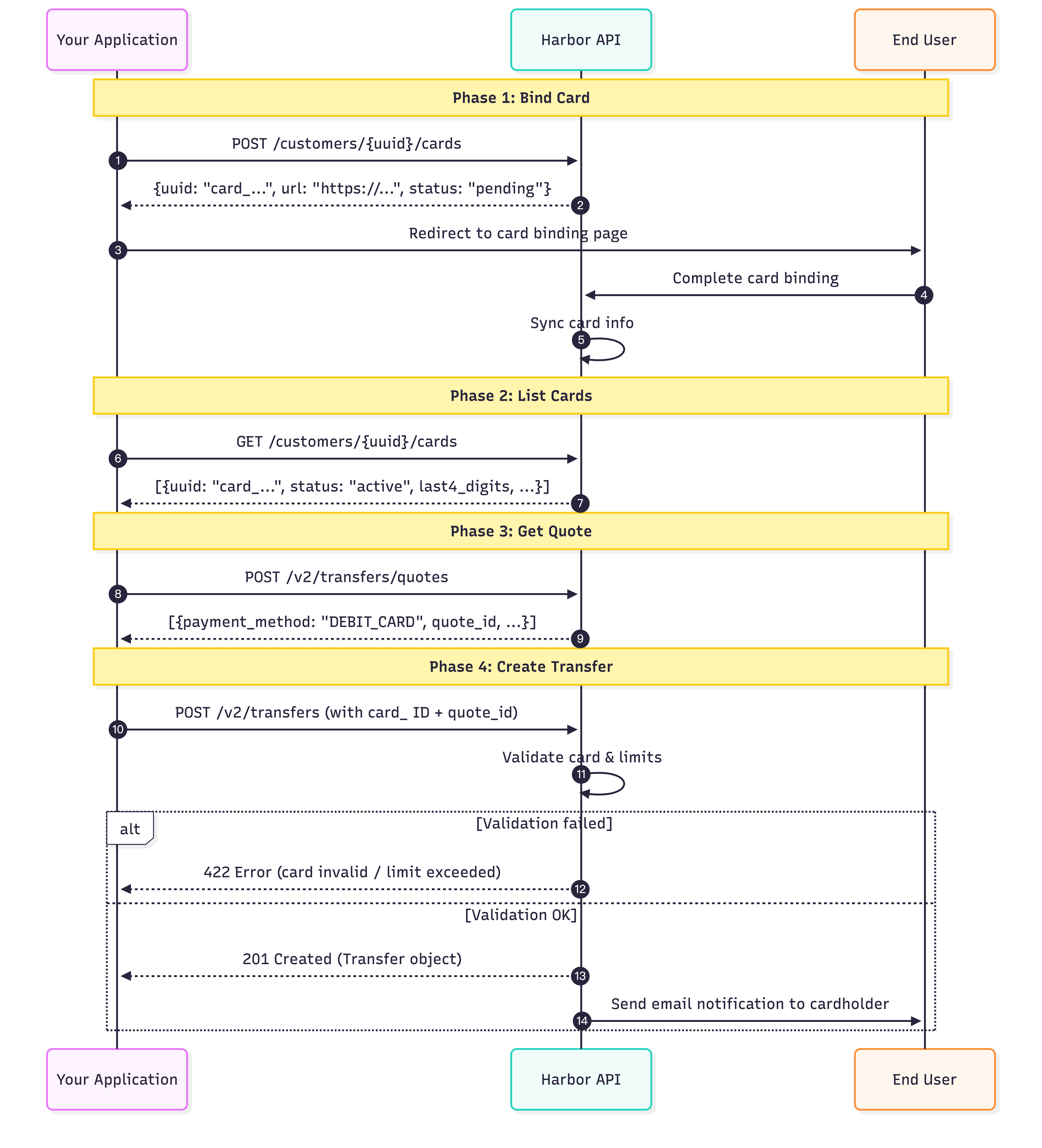
Complete Flow Diagram
Transfer Status Flow
| Status | Description |
|---|---|
PENDING_CUSTOMER_TRANSFER_START | Transfer created, awaiting processing |
PENDING_HARBOR | Being processed |
COMPLETED | Transfer complete, funds settled |
REJECT | Transfer rejected |
ON_HOLD | Transfer temporarily frozen (may require additional review) |
We recommend listening for transfer status changes via Webhooks to keep your system updated in real time.
Updated 9 days ago